Lab-2-9
(2.5% of the course mark)
React Events Lab
- The React Events Lab is designed to provide a comprehensive, hands-on experience with handling events in React applications. Events are fundamental to creating interactive user interfaces, and this lab will cover the basics of event handling for ensuring responsive and efficient event-driven applications. Participants will learn how to handle various types of events such as the use of synthetic events (React's wrapper around the browser's native DOM events).
Lab objectives
-
Overview of event handling in React.
-
Demonstrate how to handle click and keyboard events.
-
Using event objects to access event properties.
Create basic React app
- On VSCode, open the terminal and enter the following command:
npm create vite@latest react-events-app -- --template react
- Clean up the project by doing the following:
- In the src folder, update main.jsx and remove the following code:
import "./index.css";
- In the src folder, update App.jsx and overwrite the contents by copying the following code:
// Developer:
// Purpose:

function App() {
  return <h1>First React App</h1>;
}

export default App;
-
Delete the following:
-
Folder:
- src/assets
-
File:
-
src/App.css
-
src/index.css
-
-
- Open your browser and navigate to: http://localhost:5173, changes should be displayed immediately.
-
Ensure that you are able to see the latest changes in the browser after the project clean up.
-
Do not not proceed to the next step until you have verified that the project is still working.
Add Lucide React
- In the terminal, install Lucide React by running the following command:
npm install lucide-react
Add Tailwind
- In the terminal, install Tailwind and Vite plugin by running the following command:
npm install -D tailwindcss @tailwindcss/vite
- In the root of the app, update vite.config.js and add the following code:
import { defineConfig } from "vite";
import react from "@vitejs/plugin-react";
import tailwindcss from "@tailwindcss/vite";

export default defineConfig({
  plugins: [react(), tailwindcss()],
});
- In the src folder, create a file named: style.css and add the following code:
@import "tailwindcss";
- In the src folder, update main.jsx with the following css import statements:
import "./style.css";
Ensure this file has no other CSS imports besides the one above, as doing so may cause inconsistencies in the output.
Create components
-
Inside the src folder, create a folder named: components.
-
Inside the components folder, create a file named: EventsDemo.jsx and add the following code:
// Developer:
// Purpose:

// Hook to make the form a controlled form
import { useState } from "react";

// Use the following Lucide React icons
import { UserRound, SendHorizontal } from "lucide-react";

const ROLES = ["Select a role", "Admin", "Editor", "Viewer"];
const STATUSES = ["Active", "Inactive", "Pending"];

function EventsDemo() {
  // State variables
  const [userName, setUserName] = useState("");
  const [role, setRole] = useState("");
  const [sendWelcomeEmail, setSendWelcomeEmail] = useState("off");
  const [subscribeToUpdates, setSubscribeToUpdates] = useState("off");
  const [status, setStatus] = useState("");

  // Handler when there are changes to the inputs
  const changeHandler = (event) => {
    // ES5 destructuring
    const { id, value, type } = event.target;

    // Make a distinction with checkbox because its input value are on or off
    if (type === "checkbox") {
      if (id === "sendWelcomeEmail") {
        setSendWelcomeEmail(value);
      } else if (id === "subscribeToUpdates") {
        setSubscribeToUpdates(value);
      }
    } else {
      if (id === "userName") {
        setUserName(value);
      } else if (id === "role") {
        setRole(value);
      } else if (id === "status") {
        setStatus(value);
      }
    }
  };

  // Handler when the form is submitted
  const submitHandler = (event) => {
    // Don't submit the form
    event.preventDefault();
    const message = `userName: ${userName}\nrole: ${role}\nsendWelcomeEmail: ${sendWelcomeEmail}\nsubscribeToUpdates: ${subscribeToUpdates}\nstatus: ${status}`;
    alert(message);
    console.log(message);
  };

  return (
    <div className="flex items-center justify-center min-h-screen bg-gray-50">
      <div className="bg-white border border-gray-200 rounded-xl p-6 w-full max-w-md">
        <h2 className="flex items-center justify-center gap-2 text-lg font-medium mb-6">
          <UserRound className="w-5 h-5 text-gray-500" />
          New user
        </h2>

        <form onSubmit={submitHandler}>
          <div className="flex flex-col gap-4">
            <div className="flex flex-col gap-1.5">
              <label className="text-sm text-gray-500">Username</label>
              <input
                type="text"
                value={userName}
                id="userName"
                onChange={changeHandler}
                placeholder="Enter your username"
                className="w-full px-3 py-2 border border-gray-200 rounded-lg text-sm focus:outline-none focus:ring-2 focus:ring-blue-500"
              />
            </div>

            <div className="flex flex-col gap-1.5">
              <label className="text-sm text-gray-500">Role</label>
              <select
                onChange={changeHandler}
                id="role"
                className="w-full px-3 py-2 border border-gray-200 rounded-lg text-sm focus:outline-none focus:ring-2 focus:ring-blue-500"
              >
                {ROLES.map((role, index) => (
                  <option key={role}>{role}</option>
                ))}
              </select>
            </div>

            <div className="flex flex-col gap-2">
              <label className="text-sm text-gray-500">Notifications</label>
              <label className="flex items-center gap-2 text-sm cursor-pointer">
                <input
                  type="checkbox"
                  id="sendWelcomeEmail"
                  onChange={changeHandler}
                  className="w-4 h-4 cursor-pointer"
                />
                Send welcome email
              </label>
              <label className="flex items-center gap-2 text-sm cursor-pointer">
                <input
                  type="checkbox"
                  id="subscribeToUpdates"
                  onChange={changeHandler}
                  className="w-4 h-4 cursor-pointer"
                />
                Subscribe to updates
              </label>
            </div>

            <div className="flex flex-col gap-2">
              <label className="text-sm text-gray-500">Account status</label>
              {STATUSES.map((status, index) => (
                <label
                  key={status}
                  className="flex items-center gap-2 text-sm cursor-pointer"
                >
                  <input
                    type="radio"
                    name="status"
                    id="status"
                    onChange={changeHandler}
                    value={status}
                    className="w-4 h-4 cursor-pointer"
                  />
                  {status}
                </label>
              ))}
            </div>

            <div className="border-t border-gray-100 pt-4">
              <button className="w-full flex items-center justify-center gap-2 px-4 py-2 bg-blue-600 text-white rounded-lg font-medium text-sm hover:scale-105 transition cursor-pointer">
                <SendHorizontal className="w-4 h-4" />
                Submit
              </button>
            </div>
          </div>
        </form>
      </div>
    </div>
  );
}

export default EventsDemo;
- Inside the src folder, update App.jsx and add the following code:
import EventsDemo from "./components/EventsDemo";

function App() {
  return <EventsDemo />;
}

export default App;
- In the terminal, run the following command:
npm run dev
-
Open your browser and navigate to: http://localhost:5173, and interact with the form by entering different values into the form fields and clicking Submit. Take a screenshot and save it as react-events01.png.
-
Inside the components folder, update EventsDemo.jsx and add the following:
- Add a new input element named email.
- Add a new role option.
- Add a new notification checkbox.
- Add a new status radio.
-
Ensure the new input elements are working by testing them and verifying that the updated values are displayed correctly.
-
Pay attention to the following:
- Do I need to add a new state variable?
- Do I need to add a new condition inside the handler function?
- Do I need to a array option?
- Open your browser and navigate to: http://localhost:5173, and interact with the form by entering different values into the new form fields and clicking Submit. Take a screenshot and save it as react-events02.png.
Submission
- Create a folder named submit.
Delete the node_modules folder on any app that you are submitting.
-
Copy the react-events-app and all the screenshots (react-events01.png and react-events02.png) to the submit folder.
-
Create a zip file of the submit folder.
-
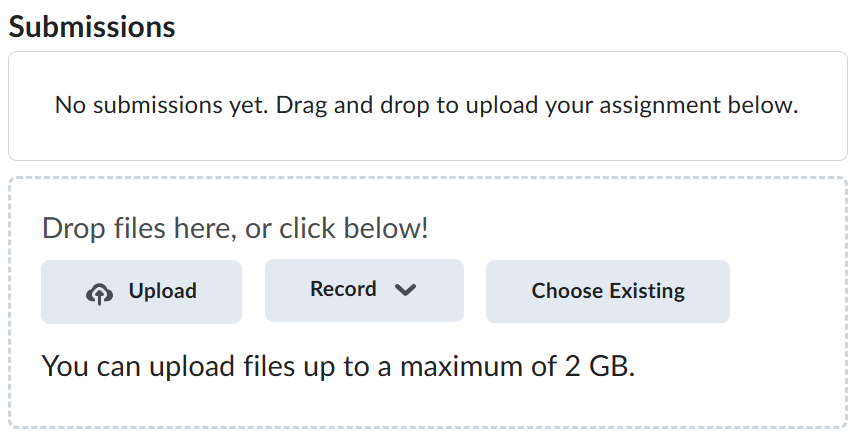
Navigate back to where the lab was originally downloaded, there should be a Submissions section (see below) where the zip file can be uploaded.