Lab-2-5
(2.5% of the course mark)
React Component Lab
- The React Component Lab is designed to provide an immersive, hands-on learning experience focused on mastering React components, the building blocks of React applications. Participants will explore functional components and learn best practices for creating reusable and efficient components.
Lab objectives
-
Learn how to create functional-based components.
-
Use functional-based components to build reusable parts of a web app.
Create basic React app
- On VSCode, open the terminal and enter the following command:
npm create vite@latest react-component-app -- --template react
- Clean up the project by doing the following:
- In the src folder, update main.jsx and remove the following code:
import "./index.css";
- In the src folder, update App.jsx and overwrite the contents by copying the following code:
// Developer:
// Purpose:

function App() {
  return <h1>First React App</h1>;
}

export default App;
-
Delete the following:
-
Folder:
- src/assets
-
File:
-
src/App.css
-
src/index.css
-
-
- Open your browser and navigate to: http://localhost:5173, changes should be displayed immediately.
-
Ensure that you are able to see the latest changes in the browser after the project clean up.
-
Do not not proceed to the next step until you have verified that the project is still working.
Add Bulma
- If the app is currently running, press
ctrl-cto stop it, otherwise in the terminal, install Bulma by running the following command:
npm install bulma
- In the src folder, update main.jsx with the following css import statements:
import "bulma/css/bulma.min.css";
Ensure this file has no other CSS imports besides the one above, as doing so may cause inconsistencies in the output.
- In the terminal, run the following command:
npm run dev
- Open your browser and navigate to: http://localhost:5173, changes should be displayed immediately.
-
Ensure that you are able to see the latest changes in the browser after adding Bulma.
-
Do not not proceed to the next step until you have verified that the project is still working.
Create components part 1
-
Inside the src folder, create a folder named: components.
-
Inside the components folder, create a file named: Header.jsx and add the following code:
// Developer:
// Purpose:

function Header() {
  return (
    <div class="section has-background-info">
      <div class="container is-size-1 has-text-centered">HEADER</div>
    </div>
  );
}

export default Header;
- Inside the components folder, create a file named: Hero.jsx and add the following code:
// Developer:
// Purpose:

function Hero() {
  return (
    <div class="section has-background-success">
      <div class="container is-size-1 has-text-centered">HERO</div>
    </div>
  );
}

export default Hero;
- Inside the components folder, create a file named: Content.jsx and add the following code:
// Developer:
// Purpose:

function Content() {
  return (
    <div class="section has-background-warning">
      <div class="container is-size-1 has-text-centered">CONTENT</div>
    </div>
  );
}

export default Content;
- Inside the components folder, create a file named: Footer.jsx and add the following code:
// Developer:
// Purpose:

function Footer() {
  return (
    <div class="section has-background-danger">
      <div class="container is-size-1 has-text-centered">FOOTER</div>
    </div>
  );
}

export default Footer;
- Inside the src folder, update App.jsx and add the following code:
import Header from "./components/Header";
import Hero from "./components/Hero";
import Content from "./components/Content";
import Footer from "./components/Footer";

function App() {
  return (
    <>
      <Header></Header>
      <Hero></Hero>
      <Content></Content>
      <Footer></Footer>
    </>
  );
}

export default App;
-
Open your browser and navigate to: http://localhost:5173, changes should be displayed immediately. Take a screenshot and save it as react-component01.png.
-
In your browser's developer tools, open the console. Pay attention to the errors generated. The previous React component JSX code has errors to demonstrate the JSX camelCase attribute rule. To get rid of these errors, go back to the React component's JSX file and replace all instances of class with className.
In JSX, the attribute used to apply CSS classes is className instead of the standard HTML class attribute. This is because class is a reserved keyword in JavaScript (Used for defining classes in ES6) and since JSX is a syntax extension of JavaScript, using class directly would cause syntax errors.
Create components part 2
-
The previous section demonstrates how you can build a web app using React's functional components. Now it is your turn to create a functional component similar to the one in the previous section. Also, Lab-2-3 has an Add Tailwind section which shows step by step how to integrate Tailwind into a React Vite app.
-
Using the current project, convert the following Tailwind-based HTML into a series of functional components.
<div className="bg-white text-gray-800 font-sans">
  <header
    className="border-b border-gray-200 px-6 py-4 flex items-center justify-between"
  >
    <span className="text-xl font-bold text-gray-900"
      >Fullstack Development</span
    >
    <nav className="flex gap-6 text-sm text-gray-500">
      <a href="#" className="hover:text-gray-900">Home</a>
      <a href="#" className="hover:text-gray-900">About</a>
      <a href="#" className="hover:text-gray-900">Contact</a>
    </nav>
  </header>

  <section className="bg-gray-50 px-6 py-24 text-center">
    <h1 className="text-5xl font-bold text-gray-900 mb-4">
      Welcome to Fullstack Development
    </h1>
    <p className="text-lg text-gray-500 mb-8 max-w-xl mx-auto">
      Our Full Stack Development Program provides you with both a comprehensive
      knowledge of the different technologies used to build full stack
      applications and the practical skills you need to design and develop full
      stack applications.
    </p>
    <div className="flex justify-center gap-4">
      <a
        href="#"
        className="bg-gray-900 text-white px-6 py-3 rounded-lg text-sm font-medium hover:bg-gray-700"
        >Get Started</a
      >
      <a
        href="#"
        className="border border-gray-300 text-gray-700 px-6 py-3 rounded-lg text-sm font-medium hover:bg-gray-100"
        >Learn More</a
      >
    </div>
  </section>

  <main className="max-w-5xl mx-auto px-6 py-20">
    <h2 className="text-2xl font-bold text-gray-900 mb-10 text-center">
      Courses
    </h2>
    <div className="grid md:grid-cols-3 gap-6">
      <div className="border border-gray-200 rounded-xl p-6">
        <div className="w-10 h-10 bg-blue-100 rounded-lg mb-4"></div>
        <h3 className="font-semibold text-gray-900 mb-2">
          Programming Fundamentals
        </h3>
        <p className="text-sm text-gray-500 leading-relaxed">
          Our Programming Fundamentals course provides a practical introduction
          to full stack development for those who have no prior experience in
          programming or computer science.
        </p>
      </div>

      <div className="border border-gray-200 rounded-xl p-6">
        <div className="w-10 h-10 bg-green-100 rounded-lg mb-4"></div>
        <h3 className="font-semibold text-gray-900 mb-2">
          Front-end Development
        </h3>
        <p className="text-sm text-gray-500 leading-relaxed">
          Our Front-end Development course helps you get the knowledge and
          skills you need to be able to build the front-end of websites and web
          applications.
        </p>
      </div>

      <div className="border border-gray-200 rounded-xl p-6">
        <div className="w-10 h-10 bg-purple-100 rounded-lg mb-4"></div>
        <h3 className="font-semibold text-gray-900 mb-2">
          Back-end Development
        </h3>
        <p className="text-sm text-gray-500 leading-relaxed">
          Our Back-end Development course focuses on teaching you the back-end
          development principles and skills you need to create server-side
          applications that support and power front-end applications.
        </p>
      </div>
    </div>
  </main>

  <footer
    className="border-t border-gray-200 px-6 py-8 text-center text-sm text-gray-400"
  >
    <p>© 2025 Fullstack Development. All rights reserved.</p>
  </footer>
</div>
- Once you are done converting the Tailwind-based HTML into a series of functional components, open your browser and navigate to: http://localhost:5173, take a screenshot and save it as react-component02.png.
Submission
- Create a folder named submit.
Delete the node_modules folder on any app that you are submitting.
-
Copy the react-component-app and all the screenshots (react-component01.png and react-component02.png).
-
Create a zip file of the submit folder.
-
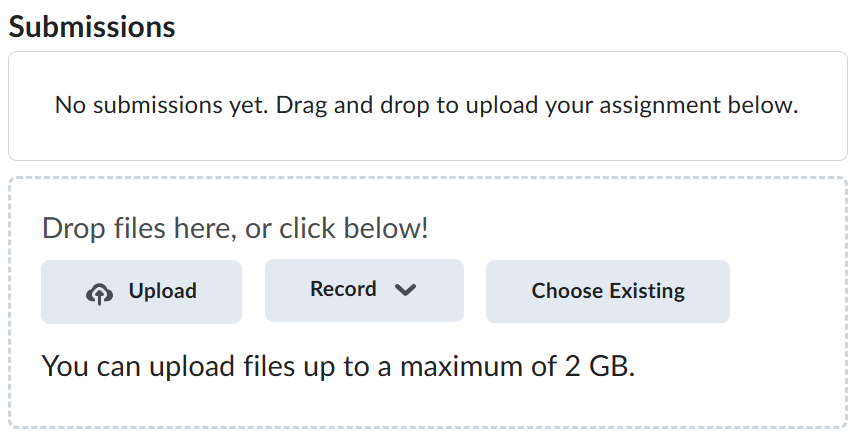
Navigate back to where the lab was originally downloaded, there should be a Submissions section (see below) where the zip file can be uploaded.