Lab-2-12
(2.5% of the course mark)
React Router Lab
- In this lab, students will build a React application with basic routing using React Router will learn to create multiple pages and navigate between them. Students will learn to create routes that can capture URL parameters and use them within components.
Lab objectives
-
Install and configure React Router in a React application.
-
Create and define basic routes.
-
Use the Link component for navigation between routes.
-
Create dynamic routes with parameters.
-
Access and use route parameters in components.
-
Display dynamic content based on URL parameters.
Create basic React app
- On VSCode, open the terminal and enter the following command:
npm create vite@latest react-router-app -- --template react
- Clean up the project by doing the following:
- In the src folder, update main.jsx and remove the following code:
import "./index.css";
- In the src folder, update App.jsx and overwrite the contents by copying the following code:
// Developer:
// Purpose:

function App() {
  return <h1>First React App</h1>;
}

export default App;
-
Delete the following:
-
Folder:
- src/assets
-
File:
-
src/App.css
-
src/index.css
-
-
- Open your browser and navigate to: http://localhost:5173, changes should be displayed immediately.
-
Ensure that you are able to see the latest changes in the browser after the project clean up.
-
Do not not proceed to the next step until you have verified that the project is still working.
Add Tailwind
- In the terminal, install Tailwind and Vite plugin by running the following command:
npm install -D tailwindcss @tailwindcss/vite
- In the root of the app, update vite.config.js and add the following code:
import { defineConfig } from "vite";
import react from "@vitejs/plugin-react";
import tailwindcss from "@tailwindcss/vite";

export default defineConfig({
  plugins: [react(), tailwindcss()],
});
- In the src folder, create a file named: style.css and add the following code:
@import "tailwindcss";
- In the src folder, update main.jsx with the following css import statements:
import "./style.css";
Ensure this file has no other CSS imports besides the one above, as doing so may cause inconsistencies in the output.
Add React Router
- In the terminal, install React Router by running the following command:
npm install react-router
-
React Router has 3 modes: Declarative, Data, and Framework.
-
Declarative mode is the simplest, you define routes in JSX and manage data fetching yourself, making it great for small SPAs but limiting as your app grows.
-
Data mode introduces route-level loader and action functions, letting the router own data fetching and mutations, which reduces boilerplate and adds built-in pending states, though it comes with a steeper learning curve.
-
Framework mode (via Remix) goes furthest, adding full SSR, file-based routing, and server / client data conventions out of the box which the most powerful but also the most opinionated and complex to set up.
-
-
This lab will show you how to set up Declarative and Data modes. Feel free to choose whichever one suits you.
Create components - Declarative and Data modes
-
Inside the src folder, create a folder named: components.
-
Inside the components folder, create a file named: Content.jsx and add the following code:
// Developer:
// Purpose:

function Content(props) {
  return (
    <div className="flex justify-center items-center h-screen">
      <h1 className="text-3xl font-medium">Page loaded via: {props.data}</h1>
    </div>
  );
}

export default Content;
- Inside the src folder, update App.jsx and add the following code:
// Developer:
// Purpose:

import { BrowserRouter, Routes, Route } from "react-router";
import Content from "./components/Content";

function App() {
  return (
    <BrowserRouter>
      <Routes>
        <Route
          path="/declarative-mode"
          element={<Content data="declarative-mode" />}
        ></Route>
      </Routes>
    </BrowserRouter>
  );
}

export default App;
- If the app is not running, in the terminal, run the following command:
npm run dev
-
Open your browser and navigate to http://localhost:5173/declarative-mode. Take a screenshot and save it declarative-mode.png.
-
Inside the src folder, update App.jsx and add the following code:
// Developer:
// Purpose:

import { createBrowserRouter } from "react-router";
import { RouterProvider } from "react-router/dom";
import Content from "./components/Content";

function App() {
  const router = createBrowserRouter([
    {
      path: "/data-mode",
      element: <Content data="data-mode"></Content>,
    },
  ]);

  return <RouterProvider router={router} />;
}

export default App;
- If the app is not running, in the terminal, run the following command:
npm run dev
- Open your browser and navigate to http://localhost:5173/data-mode. Take a screenshot and save it data-mode.png.
Create components - Url parameters
-
Inside the public folder, create a folder named: images.
-
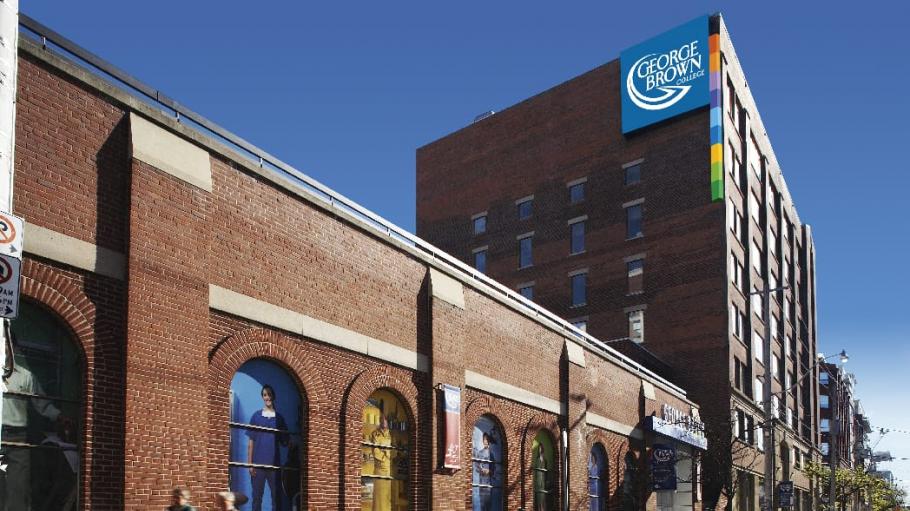
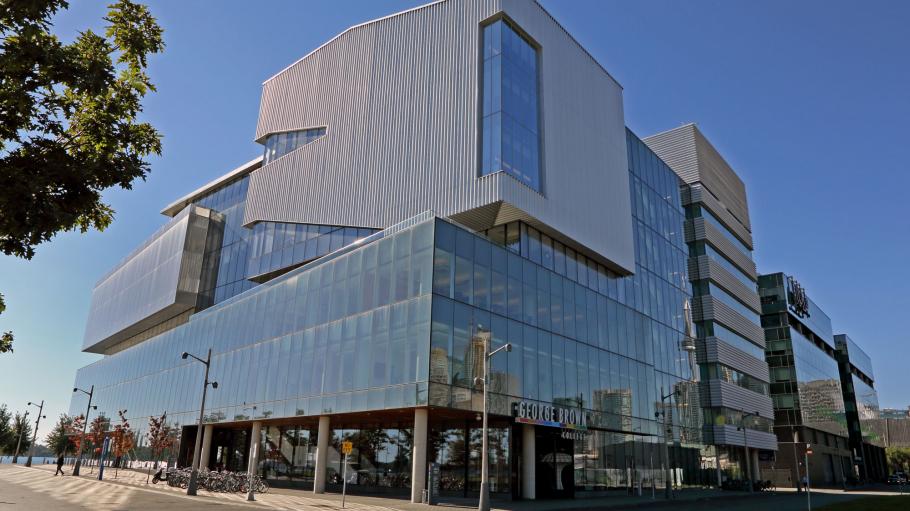
Download and save the following files: casaloma.jpg, st-james.jpg, and waterfront.jpg inside the images folder.
-
Inside the components folder, create a file named: Campus.jsx and add the following code:

// Developer:
// Purpose:

import { useEffect } from "react";
import { useParams, useNavigate } from "react-router";

const allowedCampus = ["casaloma", "st-james", "waterfront"];

function Campus(props) {
  const { campusId } = useParams();
  const navigate = useNavigate();

  useEffect(() => {
    if (!allowedCampus.includes(campusId)) {
      // Some url that does not exist
      navigate("/campus-not-found");
    }
  }, [campusId]);

  return (
    <div class="min-h-screen flex items-center justify-center">
      <div class="max-w-sm rounded-lg overflow-hidden shadow border border-gray-200">
        <img
          src={`../images/${campusId}.jpg`}
          alt="GBC Campus Image"
          class="w-full h-48 object-cover"
        />

        <div class="p-5">
          <h3 class="text-lg font-semibold mb-2">
            {props.data} mode: {campusId.toUpperCase()}
          </h3>
          <p class="text-gray-500 text-sm">
            Lorem ipsum dolor sit amet, consectetur adipiscing elit. Nunc in
            arcu vitae dui vestibulum molestie.
          </p>
        </div>
      </div>
    </div>
  );
}

export default Campus;
- Inside the components folder, create a file named: CampusNotFound.jsx and add the following code:
function CampusNotFound() {
  return (
    <div className="flex justify-center items-center h-screen">
      <p className="text-3xl font-bold">Error 404 - Not Found</p>
    </div>
  );
}

export default CampusNotFound;
- Inside the src folder, update App.jsx and add the following code:
// Developer:
// Purpose:

import { BrowserRouter, Routes, Route } from "react-router";
import Campus from "./components/Campus";
import CampusNotFound from "./components/CampusNotFound";

function App() {
  return (
    <BrowserRouter>
      <Routes>
        <Route
          path="/campus/:campusId"
          element={<Campus data="Declarative" />}
        ></Route>
        <Route path="*" element={<CampusNotFound />}></Route>
      </Routes>
    </BrowserRouter>
  );
}

export default App;
- If the app is not running, in the terminal, run the following command:
npm run dev
-
Open your browser and navigate to either http://localhost:5173/campus/casaloma or http://localhost:5173/campus/st-james or http://localhost:5173/campus/waterfront. Take a screenshot and save it campus-declarative-mode-found.png.
-
Open your browser and navigate to either http://localhost:5173/campus/non-existent-campus. Take a screenshot and save it campus-declarative-mode-not-found.png.
-
Inside the src folder, update App.jsx and add the following code:
// Developer:
// Purpose:

import { createBrowserRouter } from "react-router";
import { RouterProvider } from "react-router/dom";
import Campus from "./components/Campus";
import CampusNotFound from "./components/CampusNotFound";

function App() {
  const router = createBrowserRouter([
    {
      path: "/campus/:campusId",
      element: <Campus data="Data"></Campus>,
    },
    {
      path: "*",
      element: <CampusNotFound></CampusNotFound>,
    },
  ]);

  return <RouterProvider router={router} />;
}

export default App;
- If the app is not running, in the terminal, run the following command:
npm run dev
-
Open your browser and navigate to either http://localhost:5173/campus/casaloma or http://localhost:5173/campus/st-james or http://localhost:5173/campus/waterfront. Take a screenshot and save it campus-data-mode-found.png.
-
Open your browser and navigate to either http://localhost:5173/campus/non-existent-campus. Take a screenshot and save it campus-data-mode-not-found.png.
Create components - Convert website
-
Download and extract: ws.zip. This zip contains a sample website which we are going to convert to a React app that uses React Router for navigation. Feel free to navigate and try to understand how this web page is going to be turned into components.
-
Inside the components folder, create a file named: About.jsx and add the following code:
// Developer:
// Purpose:

function About() {
  return <h1>About {new Date().toISOString()}</h1>;
}

export default About;
- Inside the components folder, create a file named: Contact.jsx and add the following code:
// Developer:
// Purpose:

function Contact() {
  return <h1>Contact {new Date().toISOString()}</h1>;
}

export default Contact;
- Inside the components folder, create a file named: Footer.jsx and add the following code:
// Developer:
// Purpose:

function Footer() {
  return <h1>Footer</h1>;
}

export default Footer;
- Inside the components folder, create a file named: Header.jsx and add the following code:
// Developer:
// Purpose:

function Header() {
  return <h1>Header</h1>;
}

export default Header;
- Inside the components folder, create a file named: Home.jsx and add the following code:
// Developer:
// Purpose:

function Home() {
  return <h1>Home {new Date().toISOString()}</h1>;
}

export default Home;
- Inside the components folder, create a file named: NotFound.jsx and add the following code:
// Developer:
// Purpose:

function NotFound() {
  return <h1>NotFound {new Date().toISOString()}</h1>;
}

export default NotFound;
- Inside the components folder, create a file named: Layout.jsx and add the following code:
// Developer:
// Purpose:

import { Outlet } from "react-router";
import Header from "./Header";
import Footer from "./Footer";

function Layout() {
  return (
    <>
      <Header></Header>
      <Outlet></Outlet>
      <Footer></Footer>
    </>
  );
}

export default Layout;
<Outlet /> is a React Router component that acts as a placeholder for where child routes should render inside a parent route's component.
- Inside the src, update App.jsx and add the following code:
// Developer:
// Purpose:

import { BrowserRouter, Routes, Route } from "react-router";
import About from "./components/About";
import Contact from "./components/Contact";
import Home from "./components/Home";
import Layout from "./components/Layout";
import NotFound from "./components/NotFound";

function App() {
  return (
    <>
      <BrowserRouter>
        <Routes>
          <Route path="/" element={<Layout />}>
            <Route index element={<Home />} />
            <Route path="home" element={<Home />} />
            <Route path="about" element={<About />} />
            <Route path="contact" element={<Contact />} />
            <Route path="*" element={<NotFound />} />
          </Route>
        </Routes>
      </BrowserRouter>
    </>
  );
}

export default App;
- Navigate your browser to the urls below and take a screenshot and use the screenshot names listed.
| URL | Screenshot name |
|---|---|
| http://localhost:5173/home | declarative-home.png |
| http://localhost:5173/about | declarative-about.png |
| http://localhost:5173/contact | declarative-contact.png |
| http://localhost:5173/invalid | invalid-invalid.png |
- Inside the src folder, update App.jsx and add the following code:
// Developer:
// Purpose:

import { createBrowserRouter } from "react-router";
import { RouterProvider } from "react-router/dom";
import About from "./components/About";
import Contact from "./components/Contact";
import Home from "./components/Home";
import Layout from "./components/Layout";
import NotFound from "./components/NotFound";

function App() {
  const router = createBrowserRouter([
    {
      path: "/",
      element: <Layout></Layout>,
      children: [
        { index: true, element: <Home /> },
        { path: "home", element: <Home /> },
        { path: "about", element: <About /> },
        { path: "contact", element: <Contact /> },
        { path: "*", element: <NotFound /> },
      ],
    },
  ]);

  return <RouterProvider router={router} />;
}

export default App;
- Navigate your browser to the urls below and take a screenshot and use the screenshot names listed.
| URL | Screenshot name |
|---|---|
| http://localhost:5173/home | data-home.png |
| http://localhost:5173/about | data-about.png |
| http://localhost:5173/contact | data-contact.png |
| http://localhost:5173/invalid | data-invalid.png |
Now that the component structure is created and confirmed, we will copy the html code from the sample website to the corresponding components. When converting websites to React functional components pay attention to the following:
-
Change the class attribute to className.
-
For repeating values create a JSON object array to represent it and use the map function to display.
-
When using the map function set the key property with a unique id on the repeating parent.
-
Use the <Link> tag for <a> elements.
- Inside the components folder, update About.jsx and add the following code:
// Developer:
// Purpose:

const TEAM_MEMBERS = [
  { initials: "MJ", fullName: "Michael Jordan", title: "CEO" },
  { initials: "LB", fullName: "Lebron James", title: "Frontend Developer" },
  { initials: "KB", fullName: "Kobe Bryant", title: "Backend Developer" },
];

function About() {
  return (
    <main className="flex-1 mx-auto px-6 py-16 w-full">
      <div className="mb-12">
        <h2 className="text-2xl font-bold mb-3">Our Mission</h2>
        <p className="text-gray-600 leading-relaxed">
          Lorem ipsum dolor sit amet, consectetur adipiscing elit. Nunc in arcu
          vitae dui vestibulum molestie.
        </p>
      </div>

      <div>
        <h2 className="text-2xl font-bold mb-6">The Team</h2>
        <div className="grid md:grid-cols-3 gap-6">
          {TEAM_MEMBERS.map((teamMember, index) => (
            <div
              key={index}
              className="bg-gray-50 border border-gray-200 rounded-lg p-6 text-center"
            >
              <div className="w-16 h-16 rounded-full bg-blue-100 text-blue-600 font-bold text-xl flex items-center justify-center mx-auto mb-4">
                {teamMember.initials}
              </div>
              <h3 className="font-semibold">{teamMember.fullName}</h3>
              <p className="text-sm text-gray-500">{teamMember.title}</p>
            </div>
          ))}
        </div>
      </div>
    </main>
  );
}

export default About;
- Inside the components folder, update Contact.jsx and add the following code:
// Developer:
// Purpose:

function Contact() {
  return (
    <main className="flex-1 mx-auto px-6 py-16 w-full">
      <div className="grid md:grid-cols-2 gap-12">
        <div>
          <h2 className="text-2xl font-bold mb-6">Send a message</h2>
          <form className="space-y-4">
            <div>
              <label className="block text-sm font-medium mb-1">Name</label>
              <input
                type="text"
                placeholder="Enter your name"
                className="w-full border border-gray-300 rounded-lg px-4 py-2 text-sm focus:outline-none focus:ring-2 focus:ring-blue-500"
              />
            </div>
            <div>
              <label className="block text-sm font-medium mb-1">Email</label>
              <input
                type="email"
                placeholder="Enter your email"
                className="w-full border border-gray-300 rounded-lg px-4 py-2 text-sm focus:outline-none focus:ring-2 focus:ring-blue-500"
              />
            </div>
            <div>
              <label className="block text-sm font-medium mb-1">Message</label>
              <textarea
                rows="5"
                placeholder="What's on your mind?"
                className="w-full border border-gray-300 rounded-lg px-4 py-2 text-sm focus:outline-none focus:ring-2 focus:ring-blue-500"
              ></textarea>
            </div>
            <button
              type="submit"
              className="bg-blue-600 text-white px-6 py-2 rounded-lg text-sm font-medium hover:bg-blue-700"
            >
              Send message
            </button>
          </form>
        </div>

        <div>
          <h2 className="text-2xl font-bold mb-6">Get in touch</h2>
          <div className="space-y-4 text-sm text-gray-600">
            <div>
              <p className="font-medium text-gray-800">Email</p>
              <p>info@MyCompany.com</p>
            </div>
            <div>
              <p className="font-medium text-gray-800">Phone</p>
              <p>+1 (416) 123-1234</p>
            </div>
            <div>
              <p className="font-medium text-gray-800">Address</p>
              <p>
                123 Some Street
                <br />
                Some City, Some Province A1A 1A1
              </p>
            </div>
          </div>
        </div>
      </div>
    </main>
  );
}

export default Contact;
- Inside the components folder, update Footer.jsx and add the following code:
// Developer:
// Purpose:

function Footer() {
  return (
    <footer className="bg-gray-800 text-gray-400 text-sm text-center py-6">
      <p>© {new Date().getFullYear()} MyCompany. All rights reserved.</p>
    </footer>
  );
}

export default Footer;
- Inside the components folder, update Header.jsx and add the following code:
// Developer:
// Purpose:

import { Link } from "react-router";

const LINKS = [
  { label: "Home", url: "/home" },
  { label: "About", url: "/about" },
  { label: "Contact", url: "/contact" },
];

function Header() {
  return (
    <header className="bg-white shadow">
      <div className="mx-auto px-6 py-4 flex items-center justify-between">
        <Link to="/" className="text-xl font-bold">
          MyCompany
        </Link>
        <nav className="flex gap-6 text-sm text-gray-600">
          {LINKS.map((link, index) => (
            <Link key={index} to={link.url} className="hover:text-gray-900">
              {link.label}
            </Link>
          ))}
        </nav>
      </div>
    </header>
  );
}

export default Header;
- Inside the components folder, update Home.jsx and add the following code:
// Developer:
// Purpose:

const FEATURES = ["Feature 1", "Feature 2", "Feature 3"];

function Home() {
  return (
    <>
      <section className="flex-1 bg-gradient-to-r from-blue-500 to-fuchsia-500 text-white py-20 text-center px-6">
        <h1 className="text-4xl font-bold mb-4">Welcome to MyCompany</h1>
        <p className="text-lg mb-8 text-blue-100">
          Lorem ipsum dolor sit amet, consectetur adipiscing elit. Nunc in arcu
          vitae dui vestibulum molestie.
        </p>
      </section>
      <main className="flex-1 mx-auto px-6 py-16 w-full">
        <h2 className="text-2xl font-bold mb-6">Our Features</h2>
        <div className="grid md:grid-cols-3 gap-6">
          {FEATURES.map((feature, index) => (
            <div
              key={index}
              className="bg-gray-50 rounded-lg p-6 border border-gray-200"
            >
              <h3 className="font-semibold text-lg mb-2">{feature}</h3>
              <p className="text-gray-500 text-sm">
                Lorem ipsum dolor sit amet, consectetur adipiscing elit. Nunc in
                arcu vitae dui vestibulum molestie.
              </p>
            </div>
          ))}
        </div>
      </main>
    </>
  );
}

export default Home;
- Inside the components folder, update NotFound.jsx and add the following code:
// Developer:
// Purpose:

function NotFound() {
  return (
    <section className="flex-1 bg-gradient-to-r from-blue-500 to-fuchsia-500 text-white py-20 text-center px-6">
      <h1 className="text-4xl font-bold mb-4">Error 404 - Not Found</h1>
      <p className="text-lg mb-8 text-blue-100">
        Lorem ipsum dolor sit amet, consectetur adipiscing elit. Nunc in arcu
        vitae dui vestibulum molestie.
      </p>
    </section>
  );
}

export default NotFound;
- Inside the components folder, update Layout.jsx and add the following code:
// Developer:
// Purpose:

import { Outlet } from "react-router";
import Header from "./Header";
import Footer from "./Footer";

function Layout() {
  return (
    <div className="flex flex-col min-h-screen text-gray-800">
      <Header></Header>
      <Outlet></Outlet>
      <Footer></Footer>
    </div>
  );
}

export default Layout;
- Navigate your browser to the urls below and take a screenshot and use the screenshot names listed.
| URL | Screenshot name |
|---|---|
| http://localhost:5173/home | converted-home.png |
| http://localhost:5173/about | converted-about.png |
| http://localhost:5173/contact | converted-contact.png |
| http://localhost:5173/invalid | converted-invalid.png |
Submission
-
Create a folder named submit.
-
Copy all the screenshots (declarative-mode.png, data-mode.png, campus-declarative-mode-found.png, campus-declarative-mode-not-found.png, campus-data-mode-found.png, campus-data-mode-not-found.png, declarative-home.png, declarative-about.png, declarative-contact.png, invalid-invalid.png, data-home.png, data-about.png, data-contact.png, data-invalid.png, converted-home.png, converted-about.png, converted-contact.png and converted-invalid.png) to the submit folder.
-
Create a zip file of the submit folder.
-
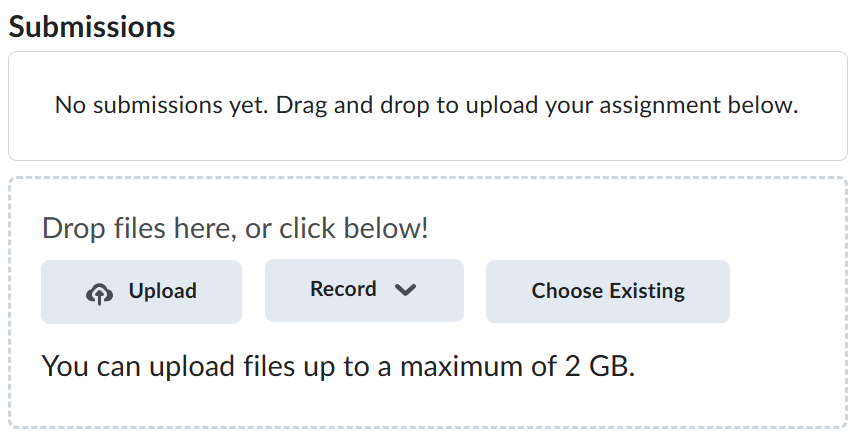
Navigate back to where the lab was originally downloaded, there should be a Submissions section (see below) where the zip file can be uploaded.