Lab-2-4
(2.5% of the course mark)
React JSX Lab
- The React JSX Lab is designed to provide hands-on experience with JSX, a syntax extension for JavaScript commonly used with React to describe the UI structure. JSX allows developers to write HTML-like code within JavaScript, making it easier to visualize the component structure and behavior. This lab will guide participants through the core concepts of JSX, including its syntax, embedding expressions, and using it to build interactive UI components.
Lab objectives
-
Learn the basics of JSX syntax and how it integrates with JavaScript.
-
Explore the differences between JSX and traditional HTML.
-
Understand the rules and best practices for writing JSX.
Create basic React app
- On VSCode, open the terminal and enter the following command:
npm create vite@latest react-jsx-app -- --template react
- Clean up the project by doing the following:
- In the src folder, update main.jsx and remove the following code:
import "./index.css";
- In the src folder, update App.jsx and overwrite the contents by copying the following code:
// Developer:
// Purpose:

function App() {
  return <h1>First React App</h1>;
}

export default App;
-
Delete the following:
-
Folder:
- src/assets
-
File:
-
src/App.css
-
src/index.css
-
-
- Open your browser and navigate to: http://localhost:5173, changes should be displayed immediately.
-
Ensure that you are able to see the latest changes in the browser after the project clean up.
-
Do not not proceed to the next step until you have verified that the project is still working.
Using sakura.css and normalize.css
-
Download the files sakura.css and normalize.css and save it to the src folder of your app. Make sure to rename them to sakura.css and normalize.css.
-
Update main.jsx and add the following css declarations:
import "./normalize.css";
import "./sakura.css";
- Open your browser and navigate to: http://localhost:5173, changes should be displayed immediately.
-
Ensure that you are able to see the latest changes in the browser after adding normalize.css and sakura.css.
-
Do not not proceed to the next step until you have verified that the project is still working.
Single root element
- Update App.jsx and overwrite body of the function with the following code:
//  Using div
return (
  <div>
    <h1>Using div</h1>
  </div>
);
- Take a screenshot and save it as jsx-single-root-01.png.
- Update App.jsx and overwrite body of the function with the following code:
// Using fragment
return (
  <>
    <h1>Using fragment</h1>
  </>
);
- Take a screenshot and save it as jsx-single-root-02.png.
- Every component must return one root element. Use a wrapper <div> or a Fragment (<>...</>) if you need multiple siblings.
JavaScript expressions in {}
- Update App.jsx and overwrite body of the function with the following code:
// Using a variable
const text = "Hello";

return (
  <div>
    <h1>text = {text}</h1>
  </div>
);
- Take a screenshot and save it as jsx-expression-01.png.
- Update App.jsx and overwrite body of the function with the following code:
// Using operators
return (
  <div>
    <h1>1 + 1 = {1 + 1}</h1>
  </div>
);
- Take a screenshot and save it as jsx-expression-02.png.
- Update App.jsx and overwrite body of the function with the following code:
// Using if statement
const dayString = [
  "Monday",
  "Tuesday",
  "Wednesday",
  "Thursday",
  "Friday",
  "Saturday",
  "Sunday",
];

const currentDay = new Date().getDay();

let weekEndOrDay = "Weekend";
if (currentDay <= 5) {
  weekEndOrDay = "Weekday";
}

return (
  <h1>
    Today is {dayString[currentDay - 1]} and it is a {weekEndOrDay}
  </h1>
);
- Take a screenshot and save it as jsx-expression-03.png.
- Update App.jsx and overwrite body of the function with the following code:
// Using ternary
const dayString = [
  "Monday",
  "Tuesday",
  "Wednesday",
  "Thursday",
  "Friday",
  "Saturday",
  "Sunday",
];

const currentDay = new Date().getDay();

return (
  <h1>
    Today is {dayString[currentDay - 1]} and it is a{" "}
    {currentDay <= 5 ? "Weekday" : "Weekend"}
  </h1>
);
- Take a screenshot and save it as jsx-expression-04.png.
- Update App.jsx and overwrite body of the function with the following code:
// All elements need to be closed, pay attention to the input element
// {" "} is equivalent to a space
// htmlFor instead or for, because it is a reserved js keyword
// Also attributes are camelCase for instance className instead of class
return (
  <>
    <label htmlFor="userName">
      Email:{" "}
      <input
        id="userName"
        name="userName"
        type="text"
        placeholder="Enter your username"
      />
    </label>
  </>
);
- Take a screenshot and save it as jsx-expression-05.png.
- Embed any JS expression inside curly braces {}. Statements like if and for aren't allowed directly, use ternaries ? or && instead.
- Update App.jsx and overwrite body of the function with code that incorporates the expression rules that was listed in the previous steps (1 - 5).
- Take a screenshot and save it as jsx-expression-06.png.
Submission
- Create a folder named submit.
Delete the node_modules folder on any app that you are submitting.
-
Copy the react-jsx-app and all the screenshots (jsx-single-root-01.png, jsx-single-root-02.png, jsx-expression-01.png, jsx-expression-02.png, jsx-expression-03.png, jsx-expression-04.png, jsx-expression-05.png and jsx-expression-06.png).
-
Create a zip file of the submit folder.
-
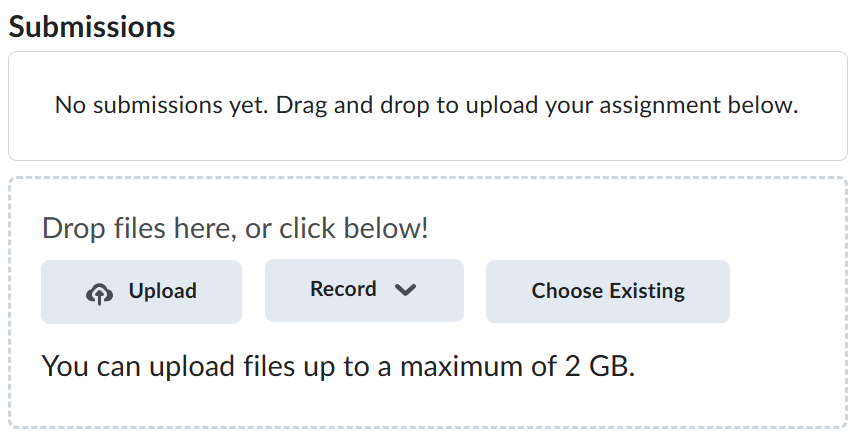
Navigate back to where the lab was originally downloaded, there should be a Submissions section (see below) where the zip file can be uploaded.