Lab-2-8
(2.5% of the course mark)
React List Lab
- In this lab, students will learn how to effectively use lists and keys in React to render collections of data.
Lab objectives
-
Understand how to use the map function to render a list of items dynamically.
-
Learn the importance of using unique keys for list items to ensure efficient rendering and updating.
Create basic React app
- On VSCode, open the terminal and enter the following command:
npm create vite@latest react-list-app -- --template react
- Clean up the project by doing the following:
- In the src folder, update main.jsx and remove the following code:
import "./index.css";
- In the src folder, update App.jsx and overwrite the contents by copying the following code:
// Developer:
// Purpose:

function App() {
  return <h1>First React App</h1>;
}

export default App;
-
Delete the following:
-
Folder:
- src/assets
-
File:
-
src/App.css
-
src/index.css
-
-
- Open your browser and navigate to: http://localhost:5173, changes should be displayed immediately.
-
Ensure that you are able to see the latest changes in the browser after the project clean up.
-
Do not not proceed to the next step until you have verified that the project is still working.
Add Tailwind
- In the terminal, install Tailwind and Vite plugin by running the following command:
npm install -D tailwindcss @tailwindcss/vite
- In the root of the app, update vite.config.js and add the following code:
import { defineConfig } from "vite";
import react from "@vitejs/plugin-react";
import tailwindcss from "@tailwindcss/vite";

export default defineConfig({
  plugins: [react(), tailwindcss()],
});
- In the src folder, create a file named: style.css and add the following code:
@import "tailwindcss";
- In the src folder, update main.jsx with the following css import statements:
import "./style.css";
Ensure this file has no other CSS imports besides the one above, as doing so may cause inconsistencies in the output.
Create components
-
Inside the src folder, create a folder named: components.
-
Inside the components folder, create a file named: ListDemo.jsx and add the following code:
// Developer:
// Purpose:

function ListDemo() {
  return (
    <div className="m-4">
      <h1 className="mb-2 text-3xl font-bold">
        Tailwind Demo Hardcode: {`${new Date()}`}
      </h1>

      <div className="mb-2 px-4 py-3 rounded bg-blue-100 border border-blue-300 text-blue-900 text-sm">
        mb-2 px-4 py-3 rounded bg-blue-100 border border-blue-300 text-blue-900
        text-sm
      </div>

      <div className="mb-2 px-4 py-3 rounded bg-green-100 border border-green-300 text-green-900 text-sm">
        mb-2 px-4 py-3 rounded bg-green-100 border border-green-300
        text-green-900 text-sm
      </div>

      <div className="mb-2 px-4 py-3 rounded bg-yellow-100 border border-yellow-300 text-yellow-900 text-sm">
        mb-2 px-4 py-3 rounded bg-yellow-100 border border-yellow-300
        text-yellow-900 text-sm
      </div>

      <div className="mb-2 px-4 py-3 rounded bg-red-100 border border-red-300 text-red-900 text-sm">
        mb-2 px-4 py-3 rounded bg-red-100 border border-red-300 text-red-900
        text-sm
      </div>

      <div className="mb-2 px-4 py-3 rounded bg-gray-100 border border-gray-300 text-gray-900 text-sm">
        mb-2 px-4 py-3 rounded bg-gray-100 border border-gray-300 text-gray-900
        text-sm
      </div>

      <div className="mb-2 px-4 py-3 rounded bg-indigo-100 border border-indigo-300 text-indigo-900 text-sm">
        mb-2 px-4 py-3 rounded bg-indigo-100 border border-indigo-300
        text-indigo-900 text-sm
      </div>
    </div>
  );
}

export default ListDemo;
- Inside the src folder, update App.jsx and add the following code:
import ListDemo from "./components/ListDemo";

function App() {
  return <ListDemo />;
}

export default App;
- In the terminal, run the following command:
npm run dev
-
Open your browser and navigate to: http://localhost:5173. Take a screenshot and save it as react-list01.png.
-
Inside the components folder, update ListDemo.jsx and add the following code:
// Developer:
// Purpose:

function ListDemo() {
  const COMMON_STYLE = "mb-2 px-4 py-3 rounded border";
  const STYLES = [
    "bg-blue-100 border-blue-300 text-blue-900",
    "bg-green-100 border-green-300 text-green-900",
    "bg-yellow-100 border-yellow-300 text-yellow-900",
    "bg-red-100 border-red-300 text-red-900",
    "bg-gray-100 border-gray-300 text-gray-900",
    "bg-indigo-100 border-indigo-300 text-indigo-900",
  ];

  return (
    <div className="m-4">
      <h1 className="mb-2 text-3xl font-bold">
        Tailwind Demo Dynamic: {`${new Date()}`}
      </h1>

      {STYLES.map((style, index) => (
        <div key={index} className={`${COMMON_STYLE} ${style}`}>
          {`${COMMON_STYLE} ${style}`}
        </div>
      ))}
    </div>
  );
}

export default ListDemo;
- Use the map function to transform the list into JSX.
- Look the common and unique values and separate them.
- Ensure the that repeating elements are assigned a key.
-
Open your browser and navigate to: http://localhost:5173. Take a screenshot and save it as react-list02.png.
-
Inside the components folder, update ListDemo.jsx and add the following code:
// Developer:
// Purpose:

function ListDemo() {
  return (
    <div className="rounded-xl border border-gray-200 overflow-hidden">
      <table className="w-full text-sm">
        <thead className="bg-gray-50 border-b border-gray-200">
          <tr>
            <th className="text-left px-4 py-3 font-medium text-gray-500">
              Name
            </th>
            <th className="text-left px-4 py-3 font-medium text-gray-500">
              Email
            </th>
            <th className="text-left px-4 py-3 font-medium text-gray-500">
              Role
            </th>
            <th className="text-left px-4 py-3 font-medium text-gray-500">
              Status
            </th>
          </tr>
        </thead>
        <tbody>
          <tr className="border-b border-gray-100 last:border-0">
            <td className="px-4 py-3 font-medium text-gray-900">Jane Doe</td>
            <td className="px-4 py-3 text-gray-500">Jane.Doe@example.com</td>
            <td className="px-4 py-3 text-gray-500">Admin</td>
            <td className="px-4 py-3">
              <span className="text-xs px-2.5 py-1 rounded-full bg-green-100 text-green-800">
                Active
              </span>
            </td>
          </tr>
          <tr className="border-b border-gray-100 last:border-0">
            <td className="px-4 py-3 font-medium text-gray-900">John Smith</td>
            <td className="px-4 py-3 text-gray-500">John.Smith@example.com</td>
            <td className="px-4 py-3 text-gray-500">Editor</td>
            <td className="px-4 py-3">
              <span className="text-xs px-2.5 py-1 rounded-full bg-amber-100 text-amber-800">
                Pending
              </span>
            </td>
          </tr>
          <tr className="border-b border-gray-100 last:border-0">
            <td className="px-4 py-3 font-medium text-gray-900">Sarah Lee</td>
            <td className="px-4 py-3 text-gray-500">Sarah.Lee@example.com</td>
            <td className="px-4 py-3 text-gray-500">Viewer</td>
            <td className="px-4 py-3">
              <span className="text-xs px-2.5 py-1 rounded-full bg-green-100 text-green-800">
                Active
              </span>
            </td>
          </tr>
          <tr className="border-b border-gray-100 last:border-0">
            <td className="px-4 py-3 font-medium text-gray-900">
              Mike Johnson
            </td>
            <td className="px-4 py-3 text-gray-500">
              Mike.Johnson@example.com
            </td>
            <td className="px-4 py-3 text-gray-500">Editor</td>
            <td className="px-4 py-3">
              <span className="text-xs px-2.5 py-1 rounded-full bg-red-100 text-red-800">
                Inactive
              </span>
            </td>
          </tr>
        </tbody>
      </table>
    </div>
  );
}

export default ListDemo;
-
Open your browser and navigate to: http://localhost:5173. Take a screenshot and save it as react-list03.png.
-
In step 6, we demonstrated how to turn a page with repeating elements into a page that uses the map function. Update ListDemo.jsx to use the map function.
- Use the map function to transform the list into JSX.
- Look the common and unique values and separate them.
- Ensure the that repeating elements are assigned a key.
- Open your browser and navigate to: http://localhost:5173. Take a screenshot and save it as react-list04.png.
Submission
- Create a folder named submit.
Delete the node_modules folder on any app that you are submitting.
-
Copy the react-list-app and all the screenshots (react-list01.png, react-list02.png, react-list03.png, and react-list04.png) to the submit folder.
-
Create a zip file of the submit folder.
-
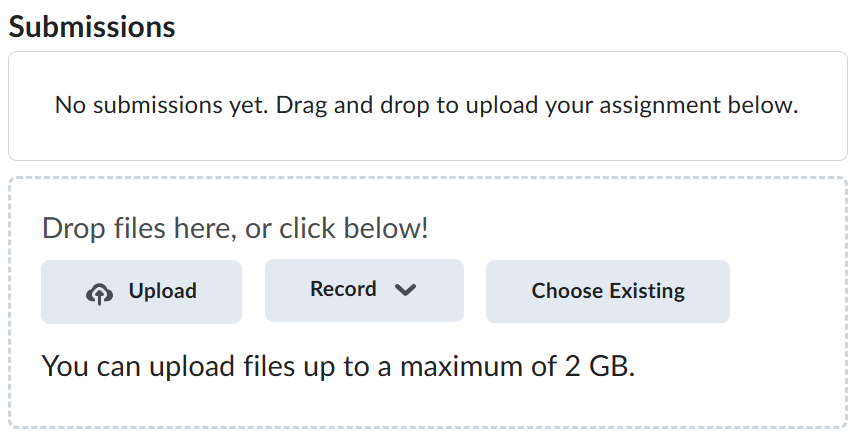
Navigate back to where the lab was originally downloaded, there should be a Submissions section (see below) where the zip file can be uploaded.