Lab-3-1
(2.5% of the course mark)
GitHub Basics Lab
- This lab is designed to introduce you to the fundamental concepts and workflows of GitHub, a popular platform for version control and collaboration. By the end of this lab, you will be familiar with the basic operations of GitHub, including creating repositories, making commits, branching, and collaborating with others.
Lab objectives
-
Become proficient in basic GitHub operations such as creating repositories, making commits, creating branches, and merging changes.
-
Understand the importance of version control in software development and how GitHub facilitates collaboration and history tracking.
-
Develop skills in collaborating with others on software projects using GitHub's features like pull requests, issues, and branches.
-
Learn how to organize code using repositories and branches effectively, ensuring a structured and manageable codebase.
-
Get familiar with common Git commands used in conjunction with GitHub, such as git clone, git add, git commit, git push, git pull, and git merge.
-
Learn and adhere to best practices for using GitHub, including clear commit messages, meaningful branch names, and effective pull request reviews.
-
Improve their project management skills by utilizing GitHub's issue tracking and project boards for task management and progress tracking.
There are many ways to perform GitHub repository operations like cloning, pushing, pulling, fetching, merging, and committing. Below are the alternatives:
-
GitHub Desktop
-
Git Command Line
-
VSCode Git Extention
This course will use GitHub Desktop as the tool to manage GitHub repositories. Feel free to use any Git alternative methods that you know how to use.
Install GitHub Desktop
-
Navigate to https://desktop.github.com.
-
Download and Install the GitHub Desktop version for your OS.
-
When prompted, login with your GitHub username / email and password.
-
Verify the following by clicking on File >> Options…
-
Accounts - Ensure that your GitHub account is signed in.
-
Git - Ensure that your name and email is properly set.
Create Repository (Public)
-
Navigate to: https://github.com and click on the Sign in button.
-
Enter your username / email address and password to sign in.
-
On the left side of the page, click New button or op the top of the page, click on the + icon an choose New repository.
-
Enter the repository name: COMP9783-FE-Public.
-
Enter the Description: COMP9783-FE-Public Repository Lab.
-
Choose Public as visibility type and click Create repository.
Clone Repository
-
Open GitHub Desktop and click on File >> Clone repository….
-
Choose COMP9783-FE-Public and click on Clone.
Pay attention to the local path, this is where you would find the repository locally.
-
Go to the local path and create a file named: readme.md.
-
Edit readme.md and add the following text below (Replace First name and Last name with your own) and save the changes:
# This is my first public repository by First name and Last name

This is my first public repository description
-
Open GitHub Desktop, ensure that the changes are visible, add any commit title and description and click on Commit to main.
-
Click on Publish branch.
-
Navigate to https://github.com and go to the COMP9783-FE-Public repository. It should display the formatted version of readme.md.
-
Navigate to: https://docs.github.com/en/get-started/writing-on-github/getting-started-with-writing-and-formatting-on-github/basic-writing-and-formatting-syntax to see the markdown syntax for formatting readme.md.
-
Make changes to readme.md and try to do something similar:
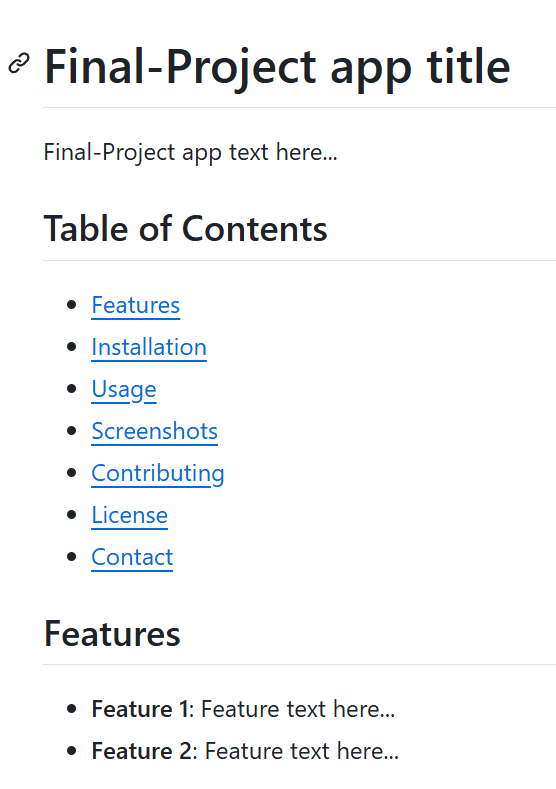
-
Open GitHub Desktop, ensure that the changes are visible, add any commit title and description and click on Commit to main.
-
Click on Publish branch.
-
Navigate to https://github.com and go to the COMP9783-FE-Public repository. It should display the formatted version of readme.md.
Add source code
-
Open VSCode and open the folder COMP9783-FE-Public.
-
In the terminal, create a Vite React app by running the following command:
npm create vite@latest . -- --template react
-
Open GitHub Desktop, ensure that the changes are visible, add any commit title and description and click on Commit to main.
-
Click on Publish branch.
-
Navigate to https://github.com and go to the COMP9783-FE-Public repository. It should display the source code that was created previously.
Create a new branch
-
Open GitHub Desktop and click on Branch >> New Branch.
-
Enter feature-branch-1 and click on Create branch.
-
Open VSCode and open the folder COMP9783-FE-Public.
-
Make changes to the source code.
-
Open GitHub Desktop, ensure that the changes are visible, add any commit title and description and click on Commit to feature-branch-1.
-
Click on Preview Pull Request. Ensure that the changes are visible.
-
Click on Create pull request. This should take you to the GitHub repository and click on Create pull request to proceed.
-
Click on Merge pull request, then Confirm merge.
Bonus - Deploy to Cloudflare
-
Navigate to https://www.cloudflare.com and click on Login in to login to the Cloudflare dashboard.
-
On the left menu, click on Compute >> Workers & Pages.
-
Click on the Create application button.
-
At the bottom of the page, look for this text: Looking to deploy Pages? Get started, click on Get started.
-
Click on the option: Import an existing Git repository by clicking on Get started.
-
If you are doing this for the first time, there should be an option to add a GitHub. The system should prompt you to enter your GitHub credentials.
-
With regards to Repository access choose Only select repositories and select COMP9783-FE-Public.
-
COMP9783-FE-Public should now be listed as one of the available repositories to use. Ensure that it is selected.
-
Click on Begin setup.
-
Choose React (Vite) as the Framework preset. Click on Save and Deploy. This should initiate the building and deployment process.
-
Once the app building and deployment have successfully finished, a page with the deployed URL should be presented. Click on the URL to see the deployed app.
Submission
- Copy the GitHub repository and Cloudflare deployed app urls to the Comments section of the Lab submission on BrightSpace.